Start
Pick a picture
Open Library and choose any grayscale design you want to reveal.
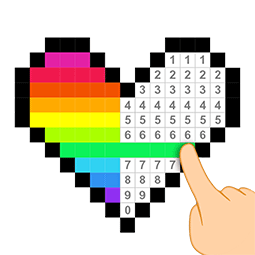
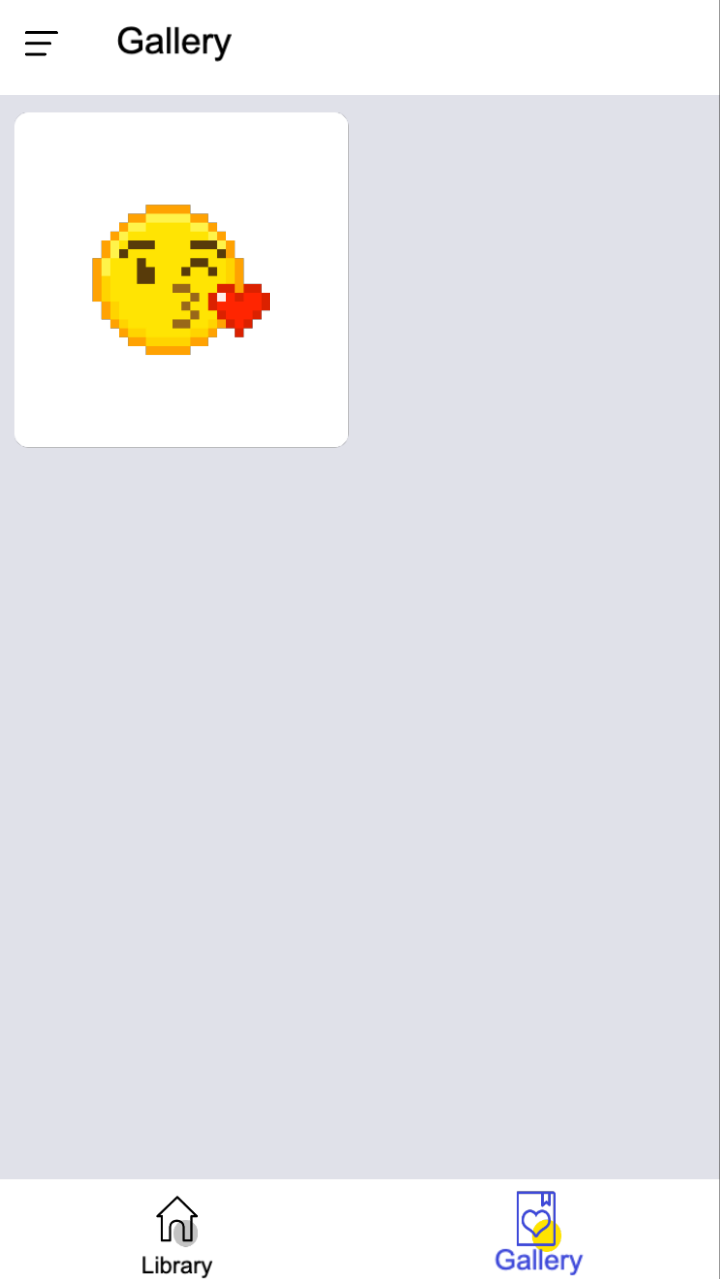
Pixel Color is a relaxing color-by-number puzzle where you match numbered cells to the palette, color continuously with a long press, and reveal pixel art one shade at a time. Finished colors are checked automatically, and every completed picture is collected in your personal Gallery.
Pixel Color is a relaxed color-by-number game. Start with a pale, numbered grid, match each cell to the palette, and watch a tiny piece of pixel art appear one color at a time.
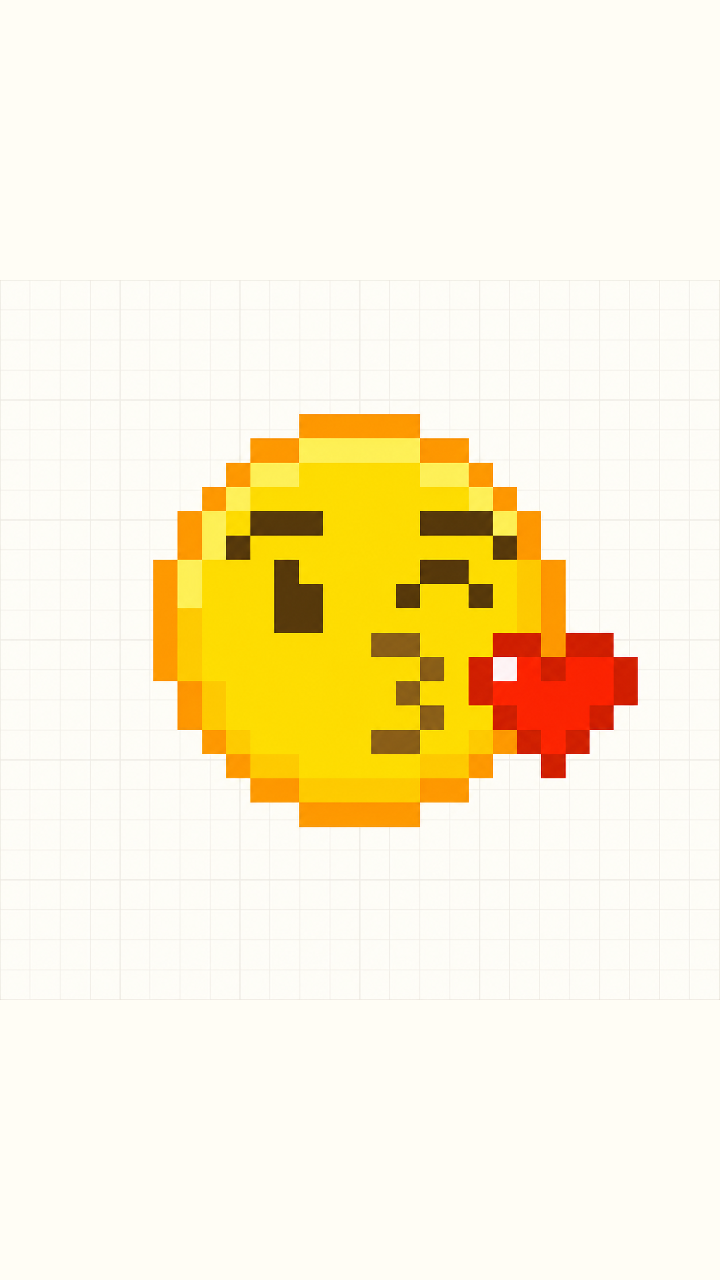
Open Library and choose any grayscale design you want to reveal.
Select a numbered color from the palette along the bottom edge.
Tap cells with the same number, or long-press and drag to color continuously.
Complete every color to reveal the artwork and add it to Gallery.
Library is the starting shelf. Unfinished pictures appear in grayscale, so it is easy to spot what is still waiting to be colored. Tap a card to open its canvas.
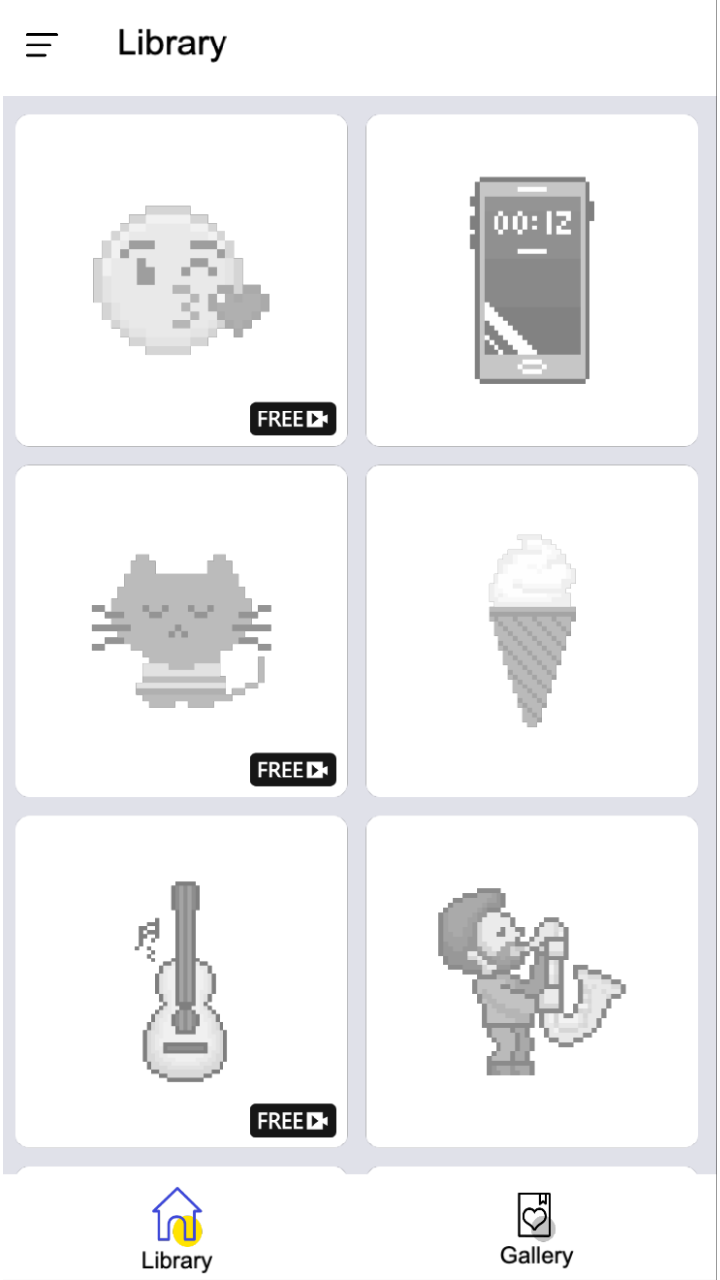
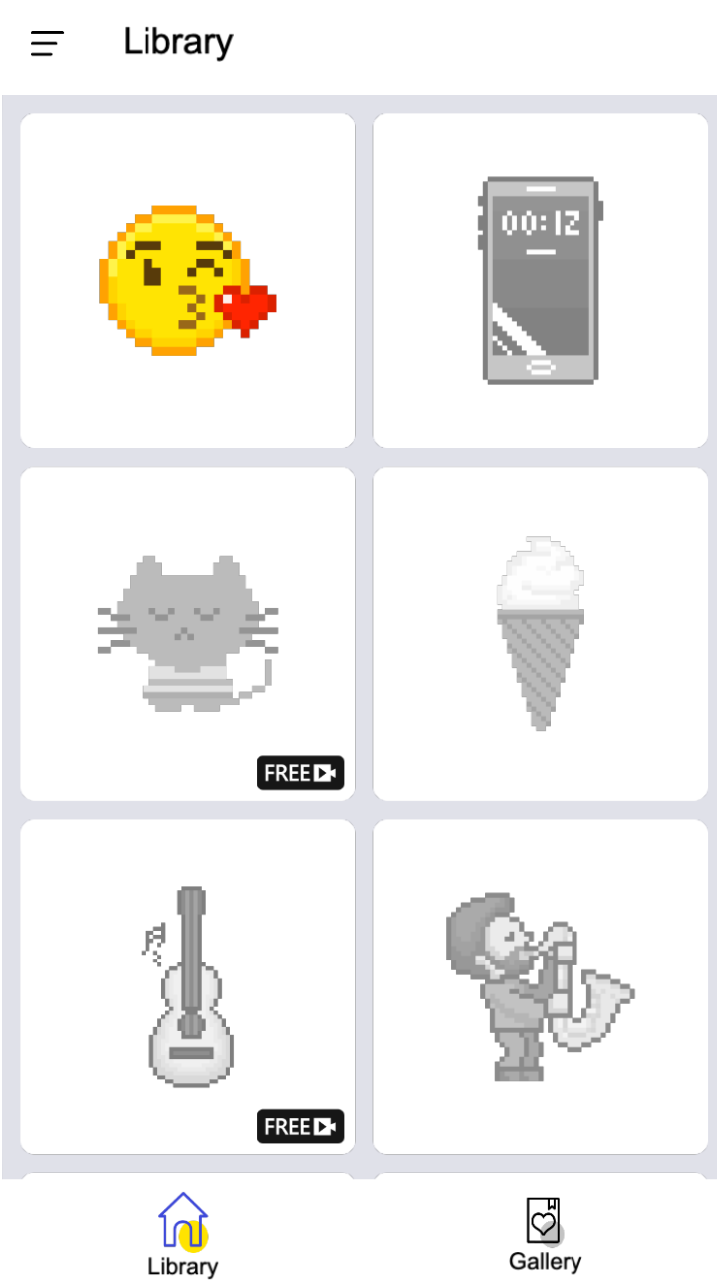
Select a numbered swatch at the bottom, then color the blank cells carrying that same number. The large preview makes the hidden picture easy to recognize; the cell grid shows exactly where each shade belongs.
Work one number at a time. It keeps the canvas readable and makes progress much easier to track.
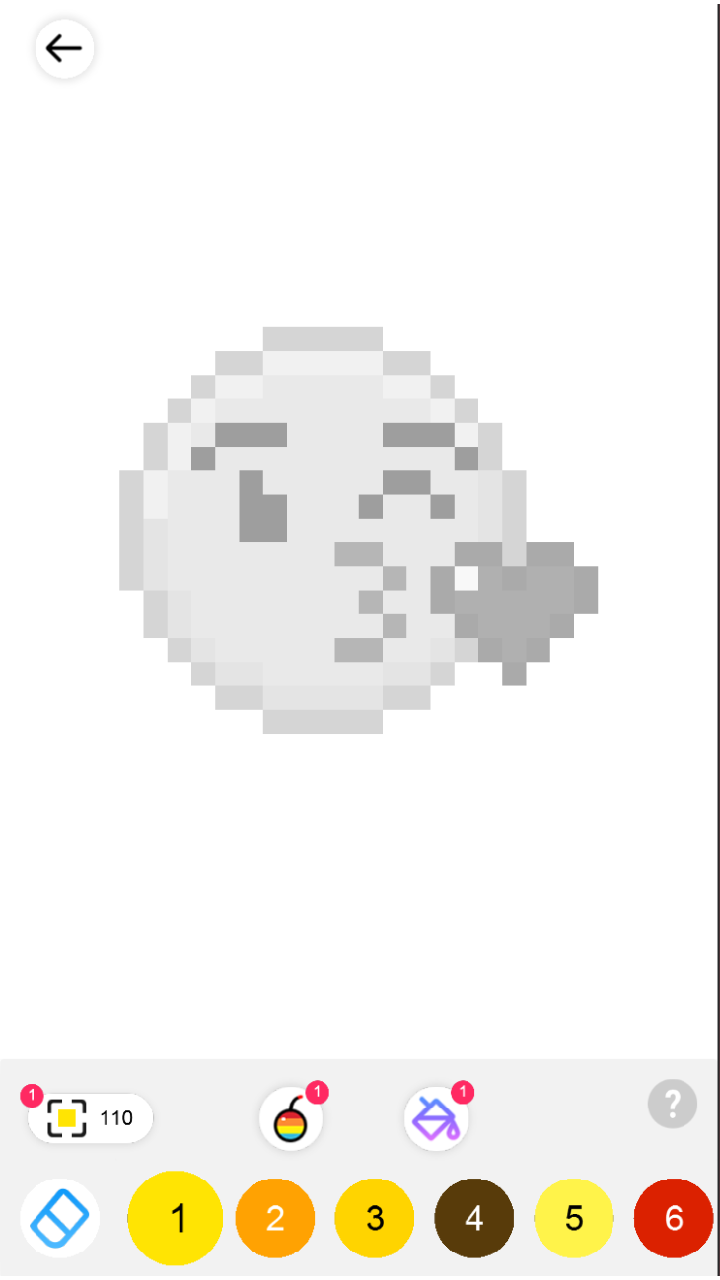
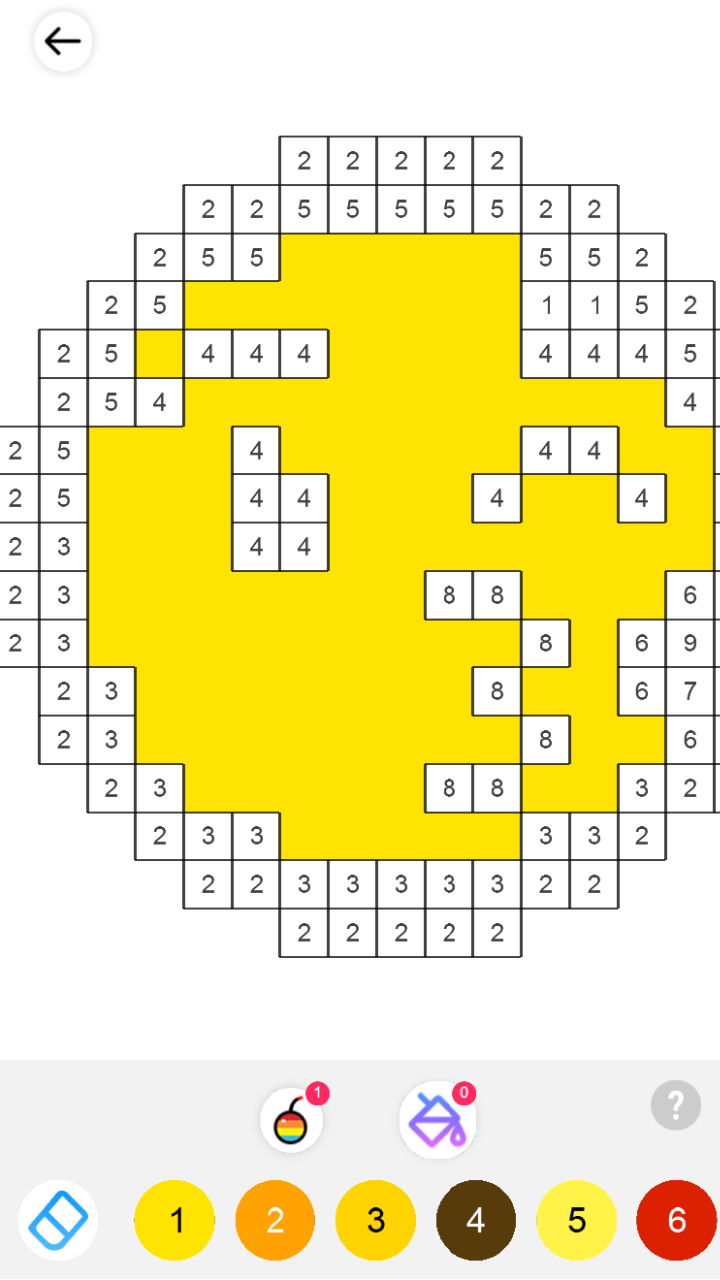
Tap individual squares for precision. For a longer row, press and hold, then move across matching cells for continuous coloring. As soon as all cells for the selected bottom color are filled, the game automatically adds a check mark to that swatch.
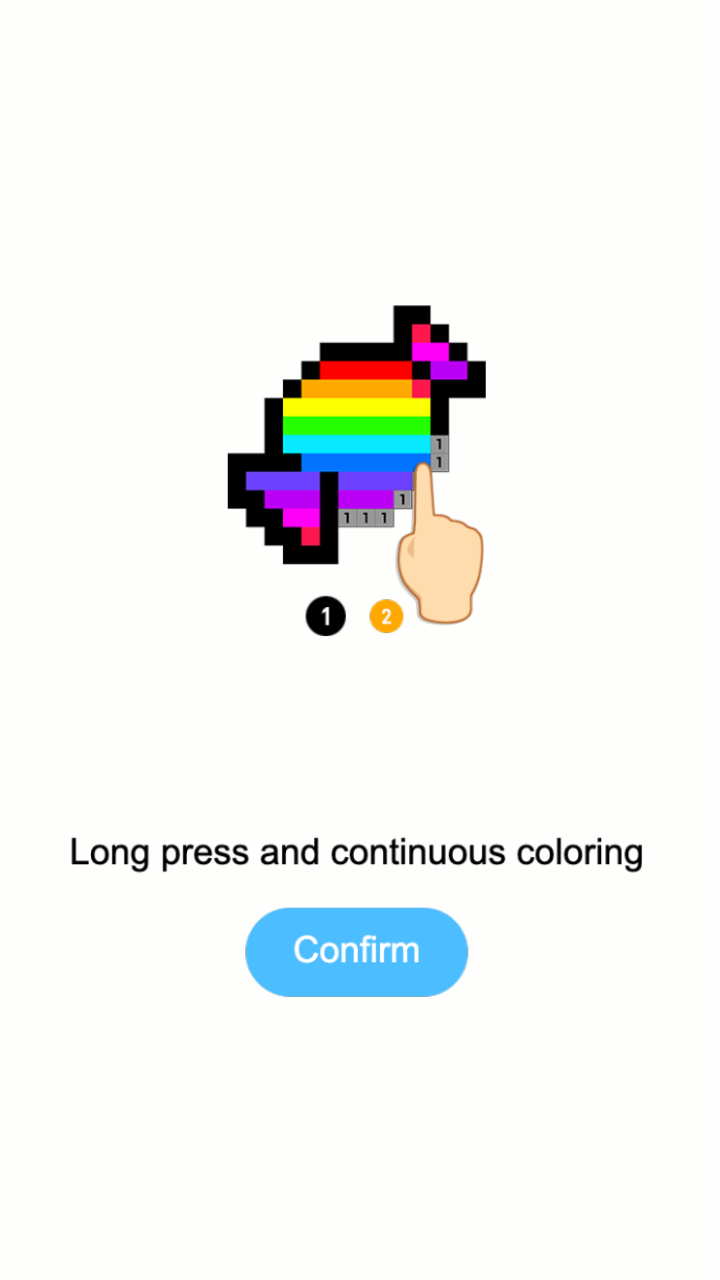
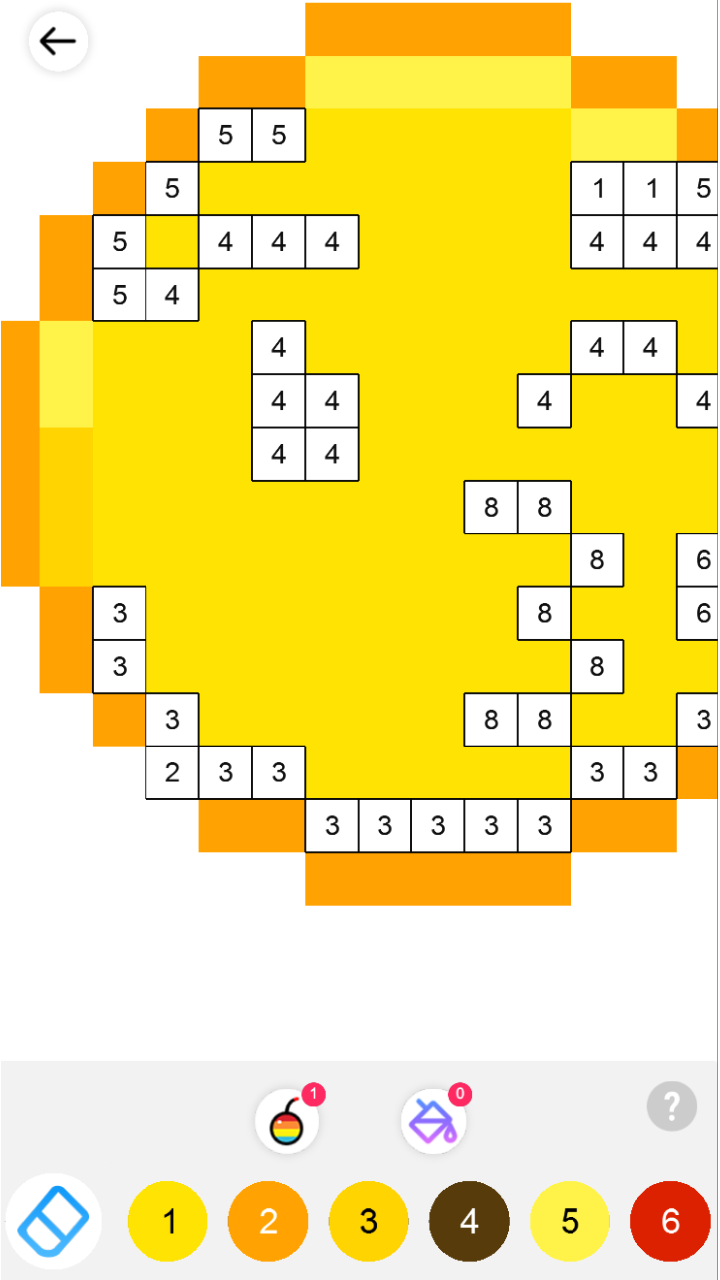
The eraser corrects a tap. Area Coloring and Smart Coloring are optional helper tools for filling uncolored parts faster: choose a tool, then tap an uncolored grid cell. Their uses are limited; when the counter reaches zero, the game may offer a video to unlock another use.
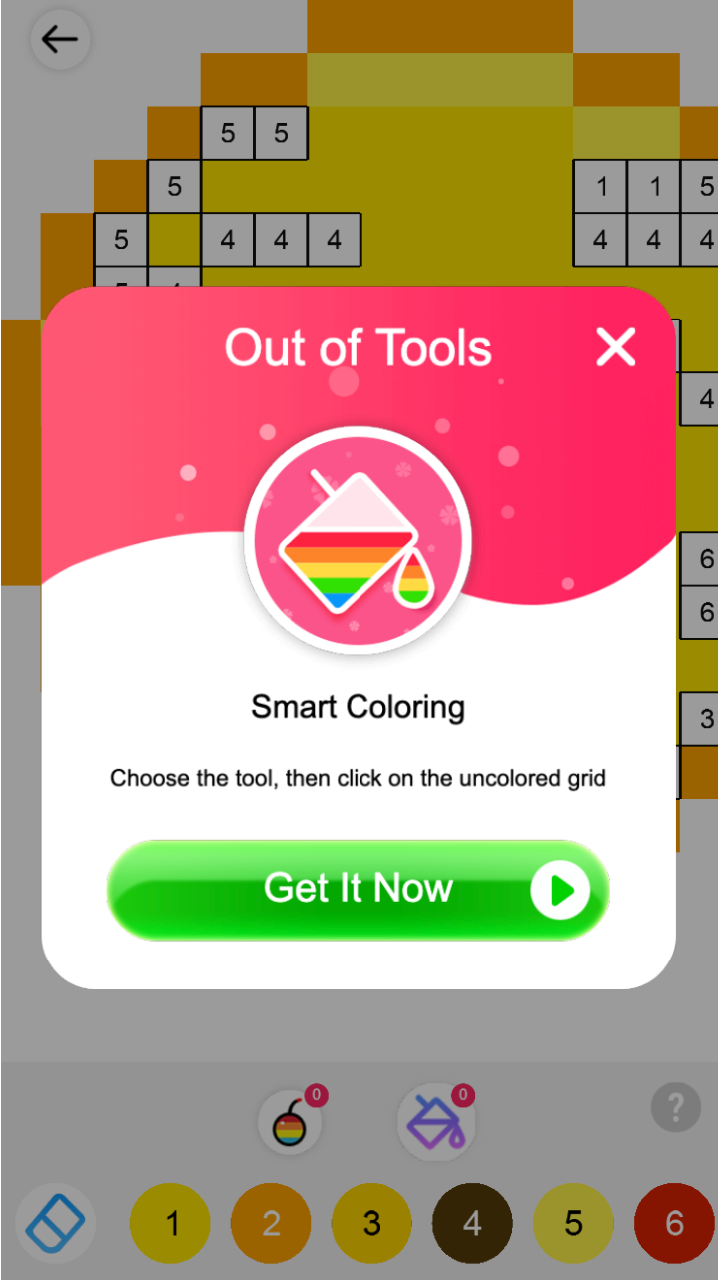
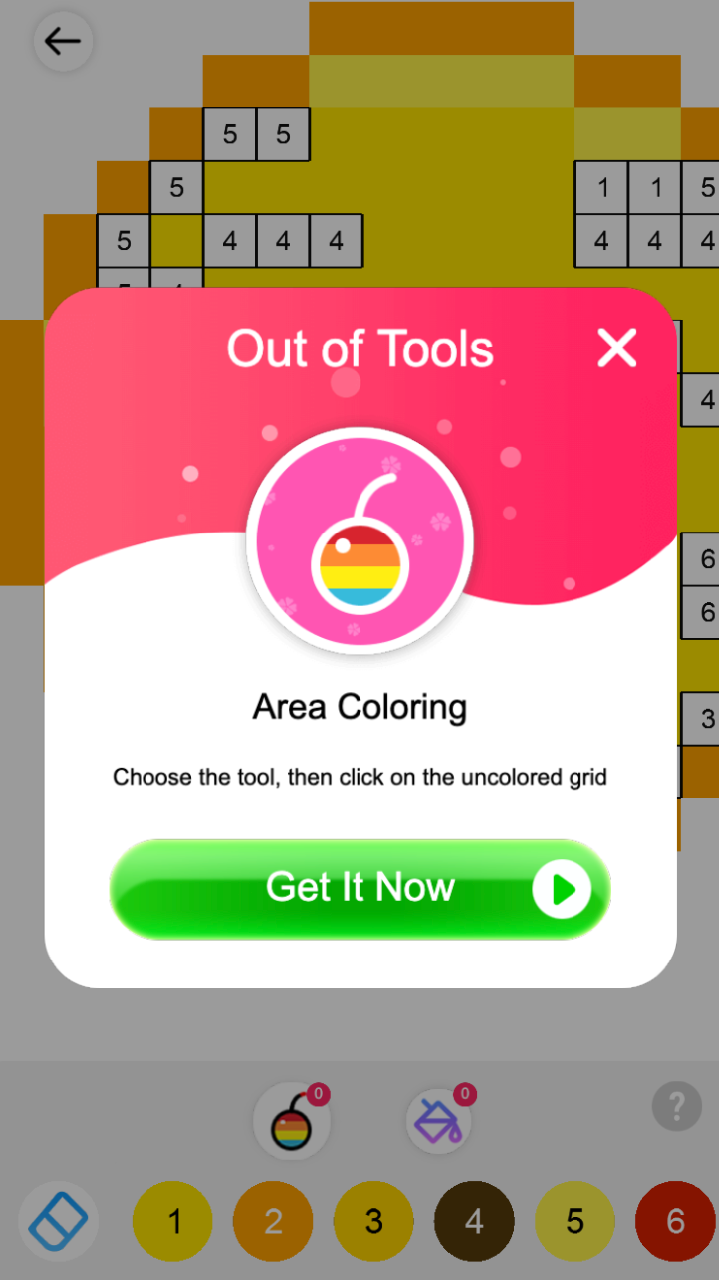
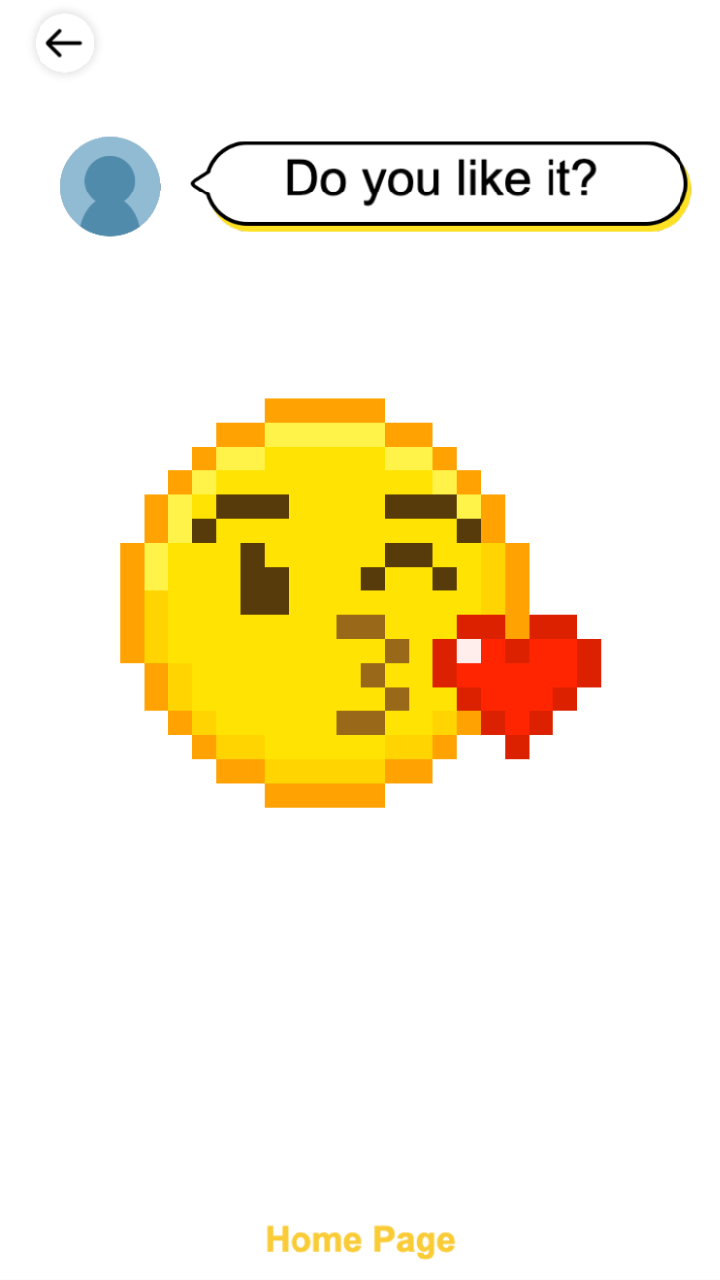
After the last numbered cell is filled, Pixel Color reveals the completed artwork and shows the success screen. Gallery is your personal finished-work shelf—it is mainly for reviewing the pictures you have already completed, not for choosing new ones.
Browse the visual guide like an image results page. Select any screenshot to open the larger view, then use the arrow keys or on-screen controls to move through the sequence.
Swipe or scroll horizontally to explore the full game flow.